LAUNCH GIVEAWAY 🎉
FIRST 5 FREE 🏆
COMING SOON
First 30 valid DMs go in the draw.
5 winners get FREE Starter = $0 build + $0 Year 1 hosting.


COMING SOON
First 30 valid DMs go in the draw.
5 winners get FREE Starter = $0 build + $0 Year 1 hosting.
Quickly update links, images and content to keep your brand fresh and optimised
❌ DO NOT DELETE:
👉 These power your BioHub features
👉 Always duplicate buttons instead of creating new ones
This keeps everything clean and consistent
👉 How to Edit, Update & Manage Your BioHub Page
Please note: This video has no sound
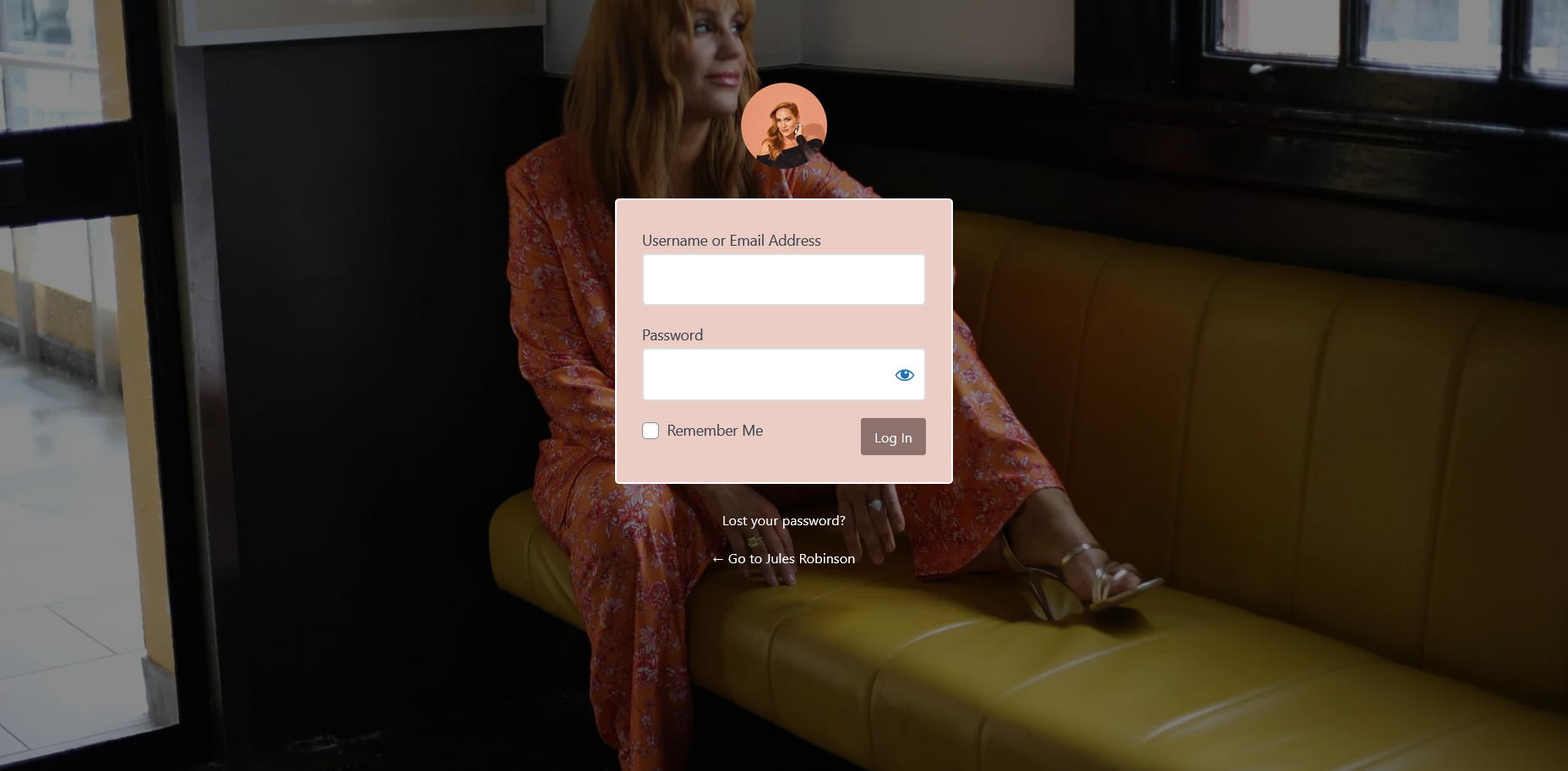
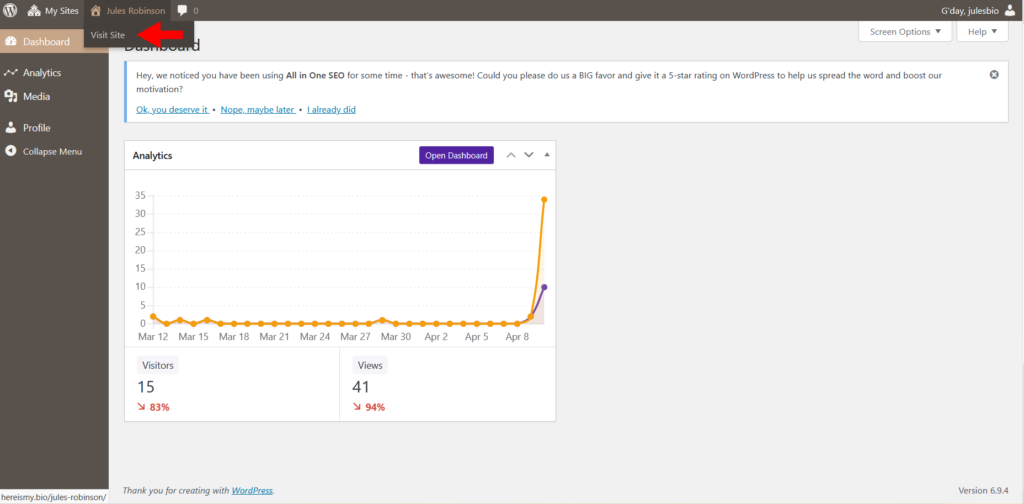
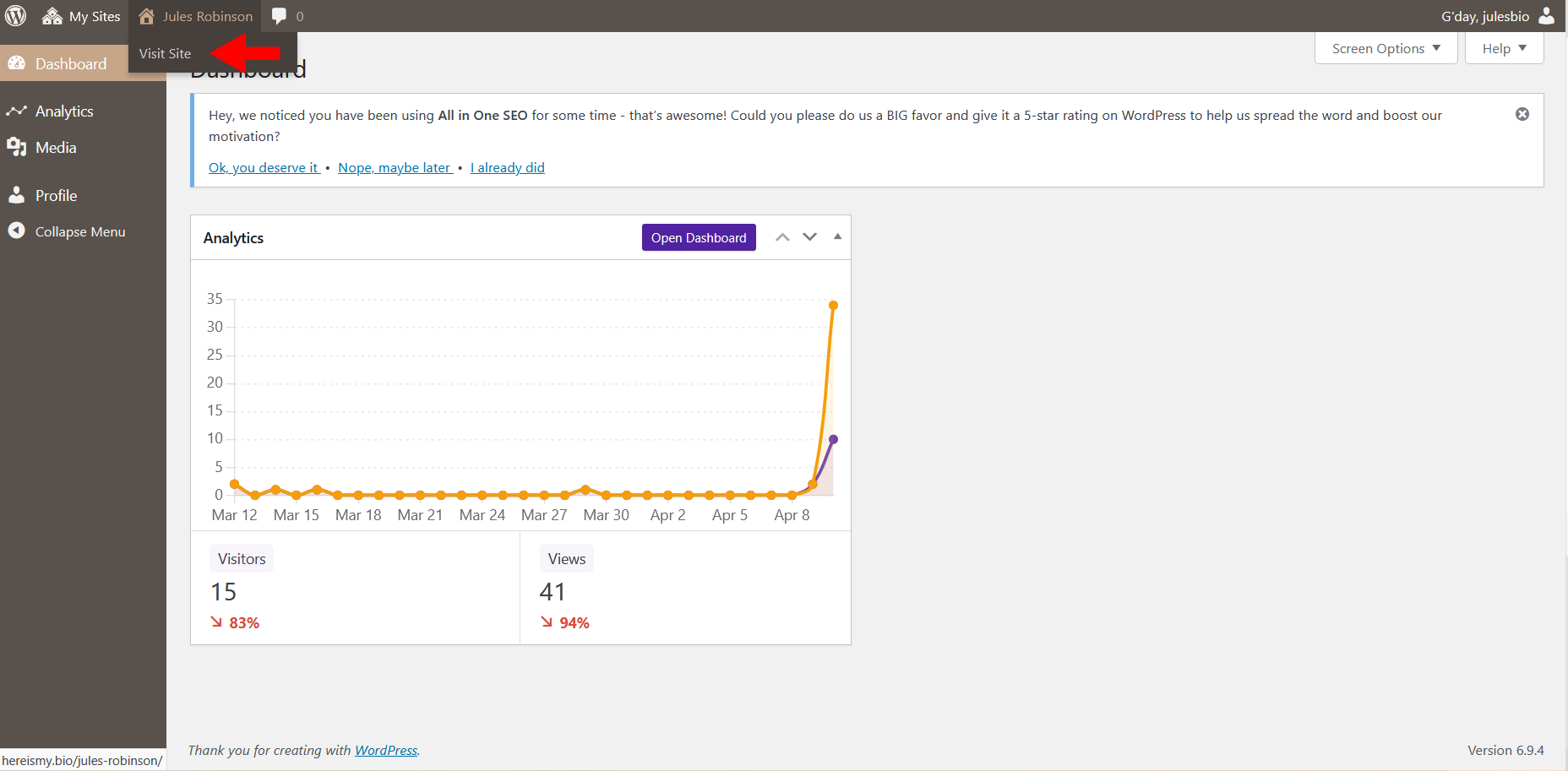
Once on your page
At the top, hover over Edit Page
👉 This is the ONLY way to edit your page properly
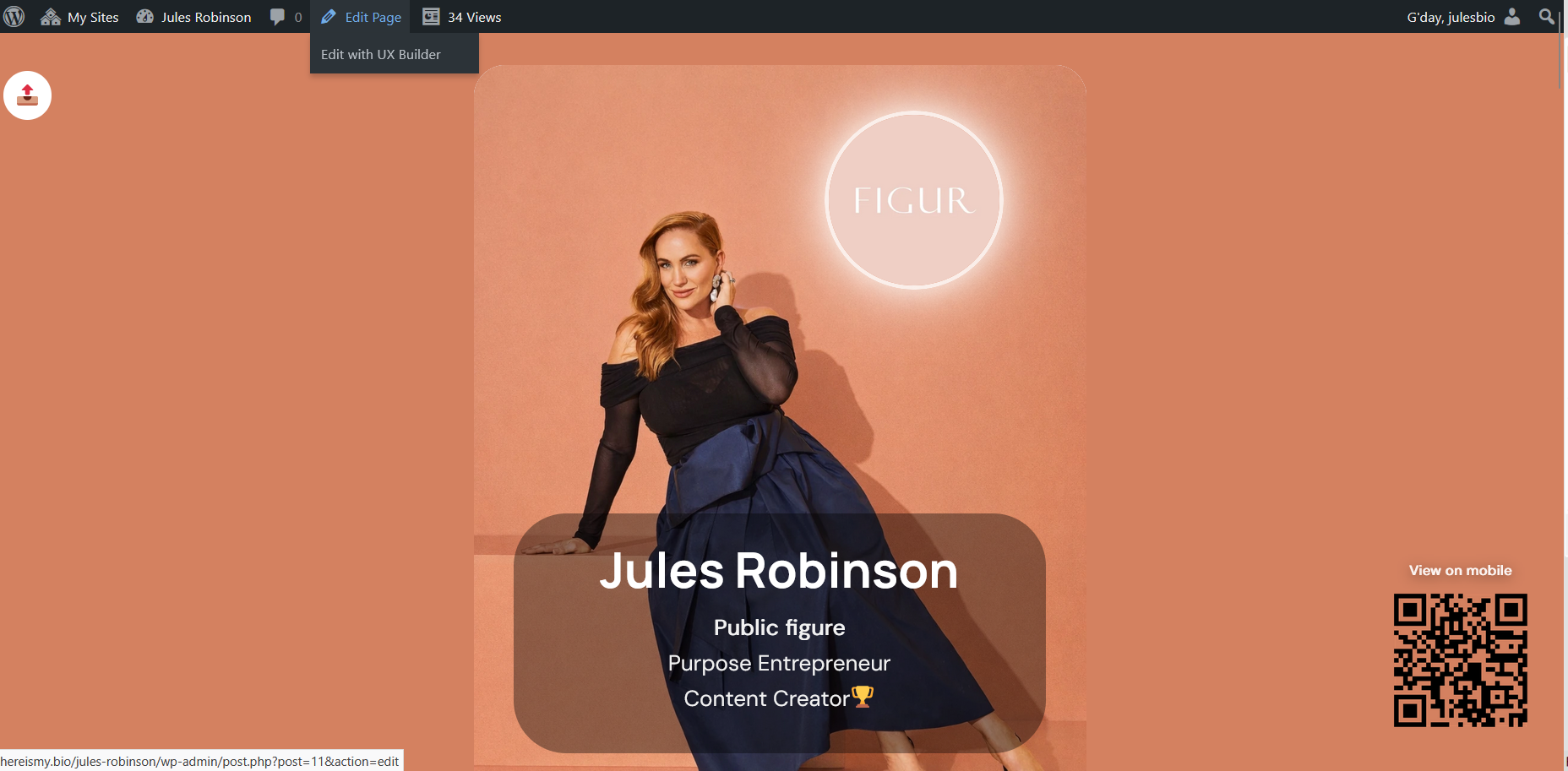
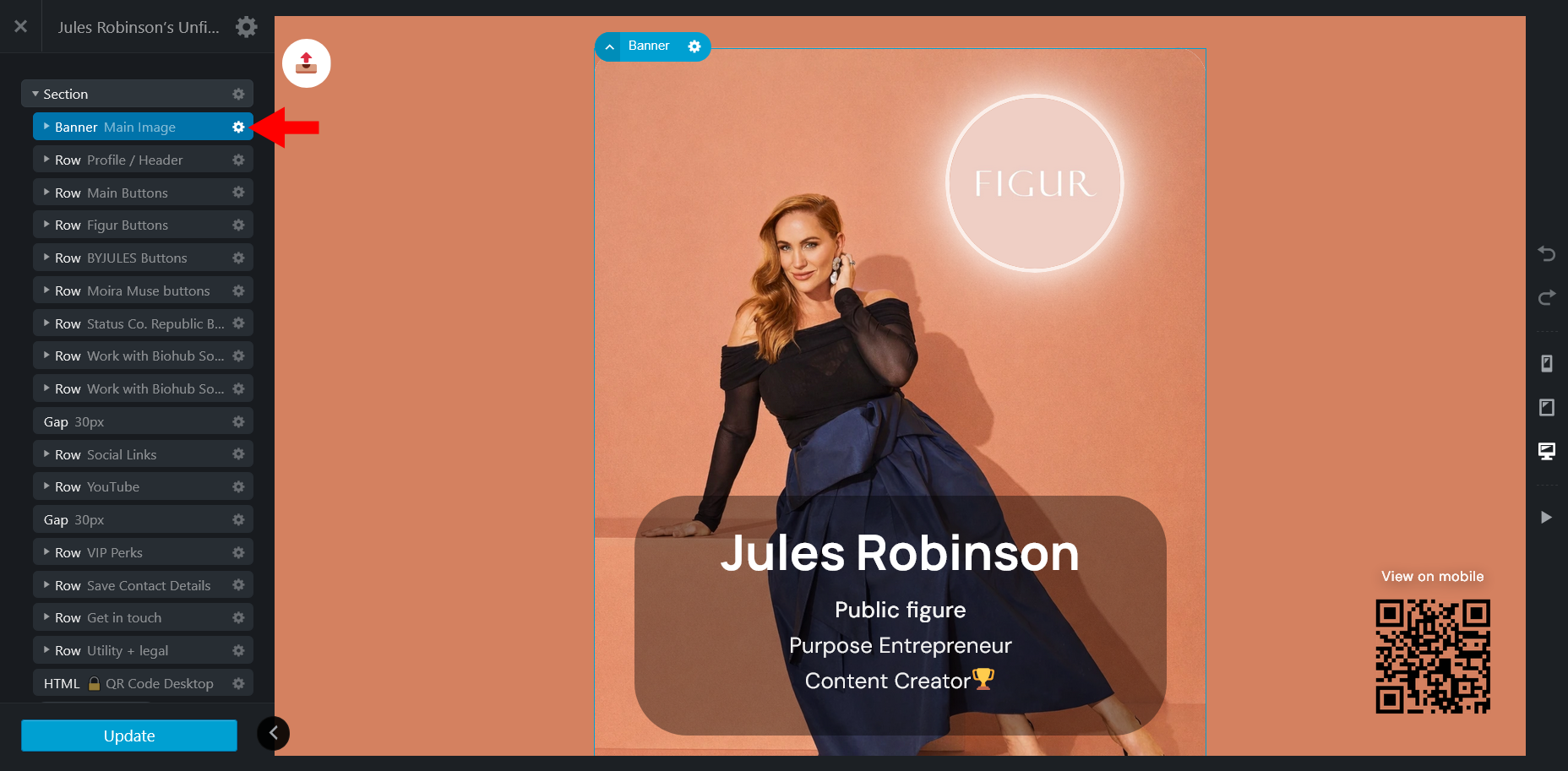
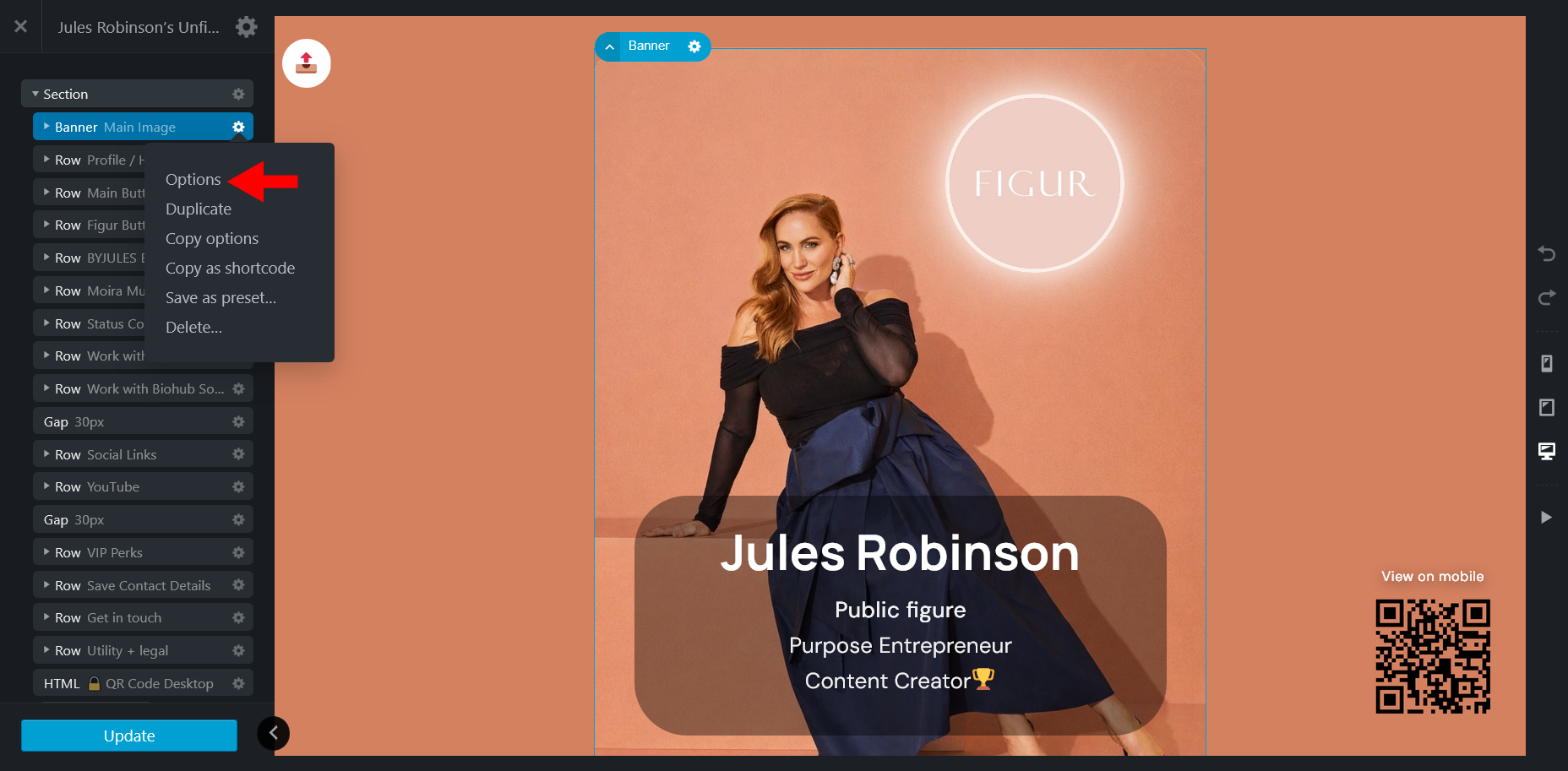
In the left panel click the gear icon ⚙️ next to Banner and select Options:
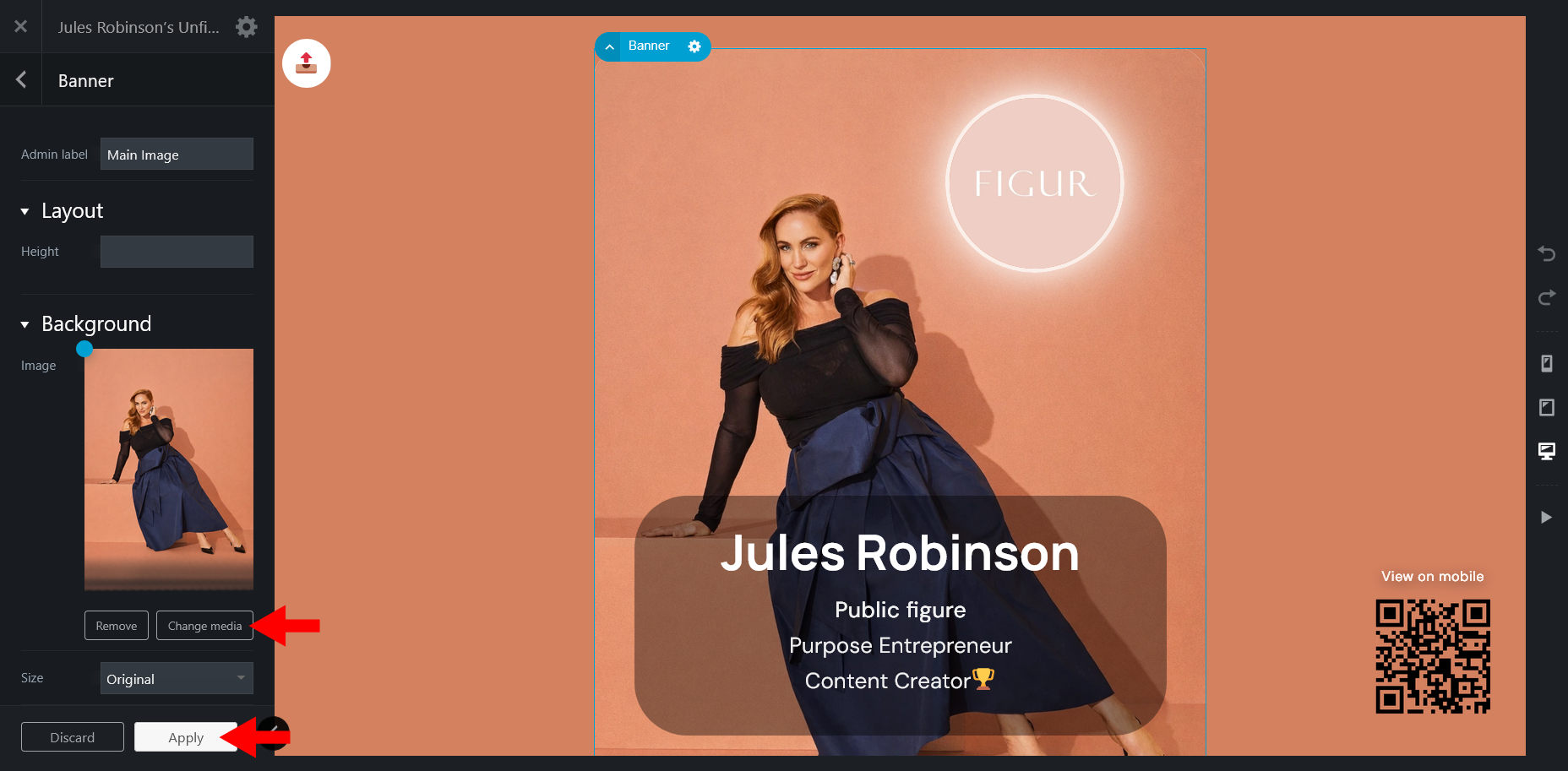
👉 Banner – Main Image
Change: Background Image → change media/ upload files
Click Apply
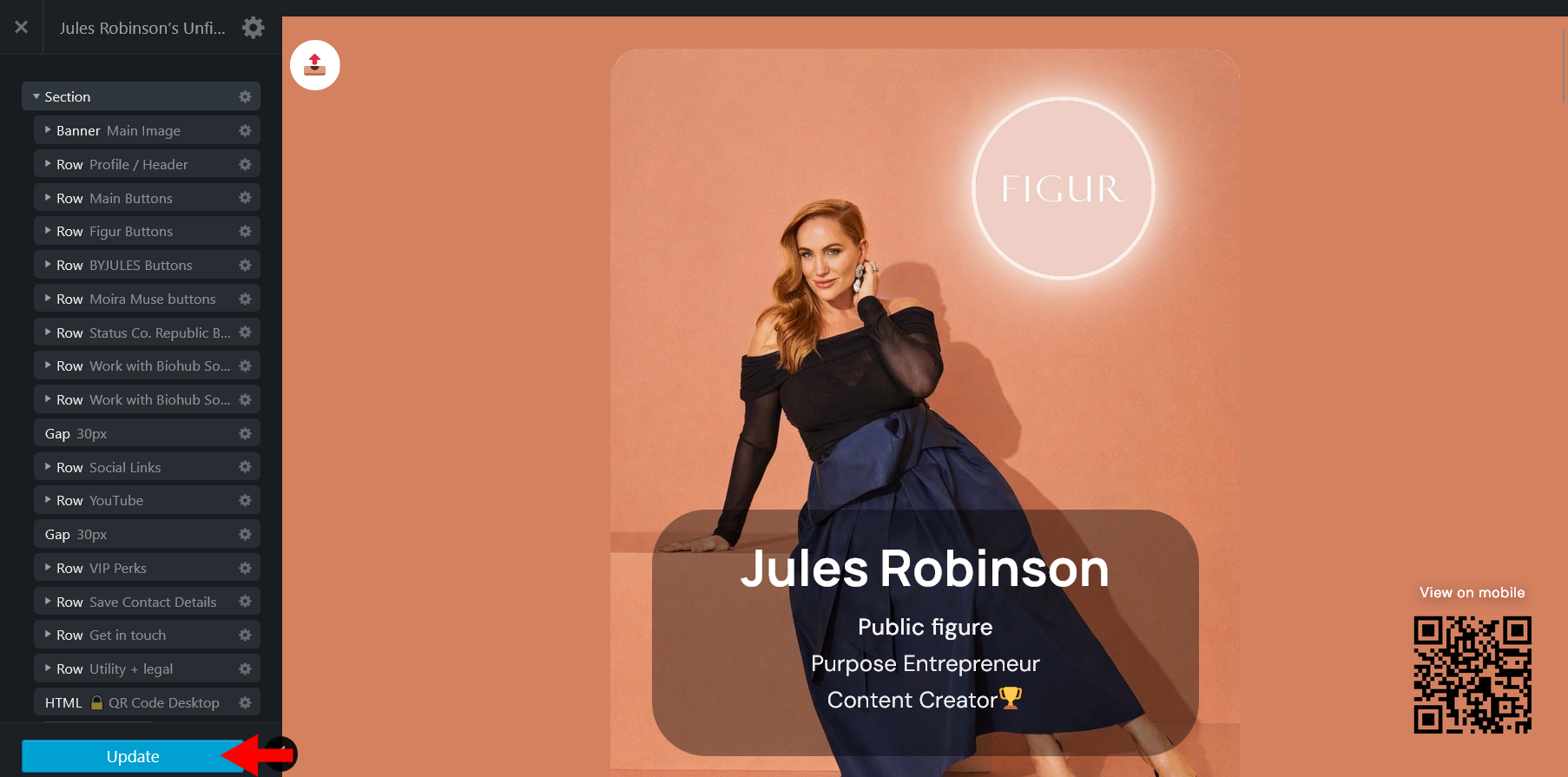
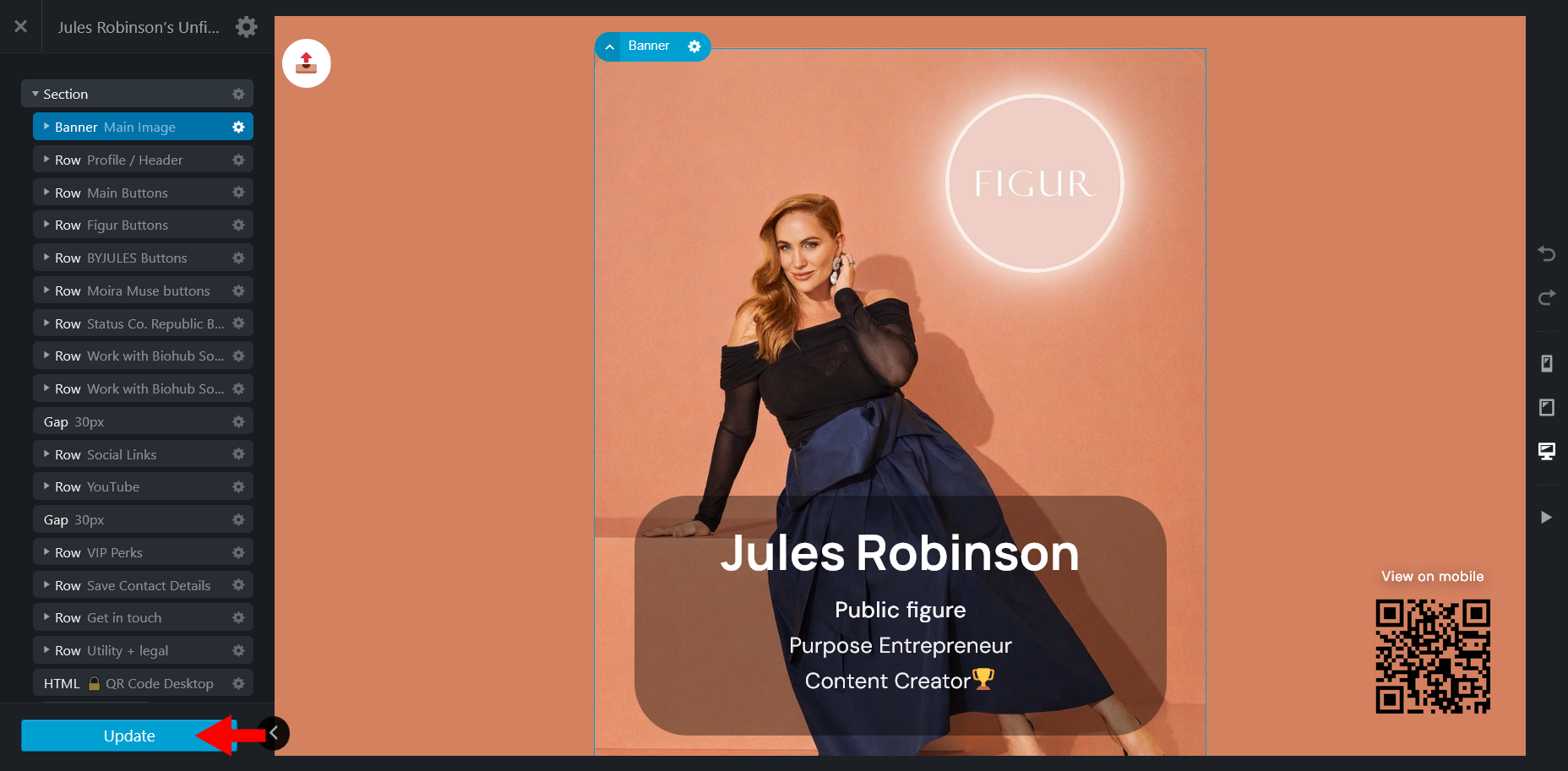
Then Update
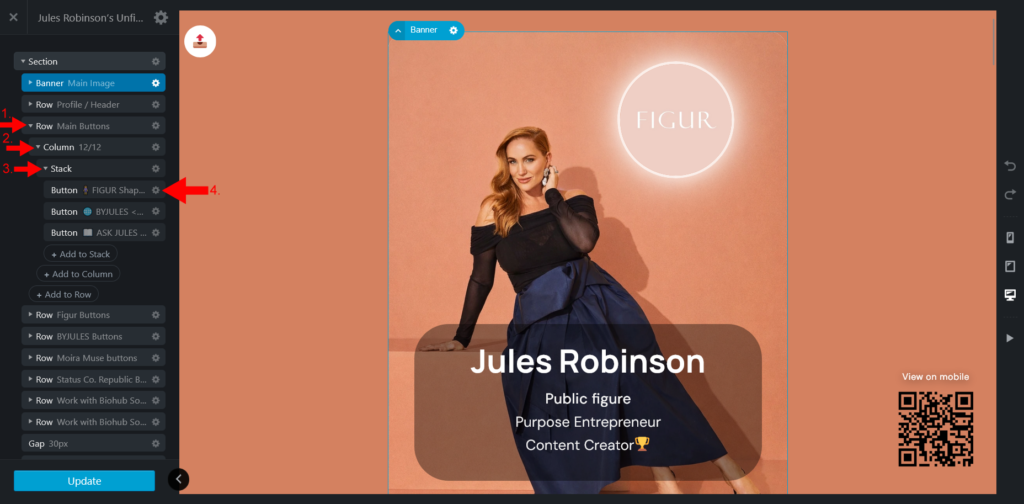
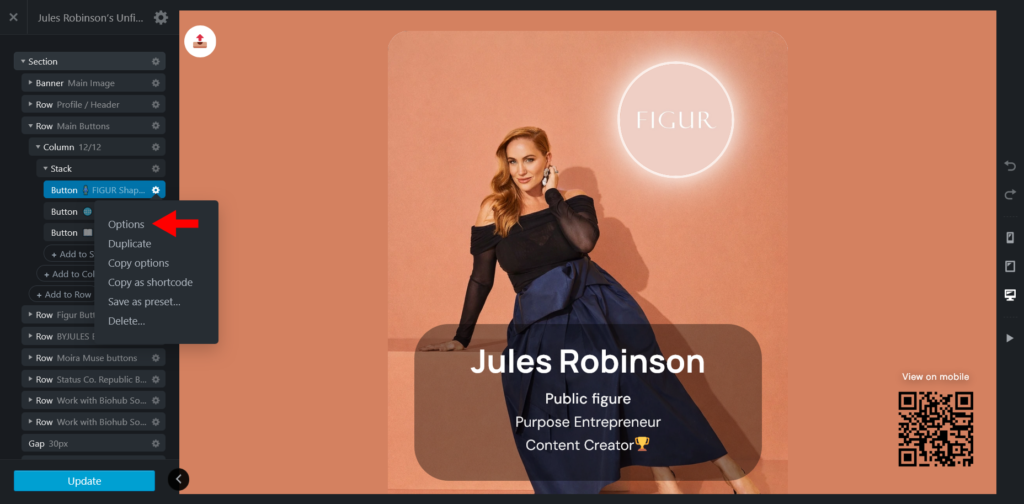
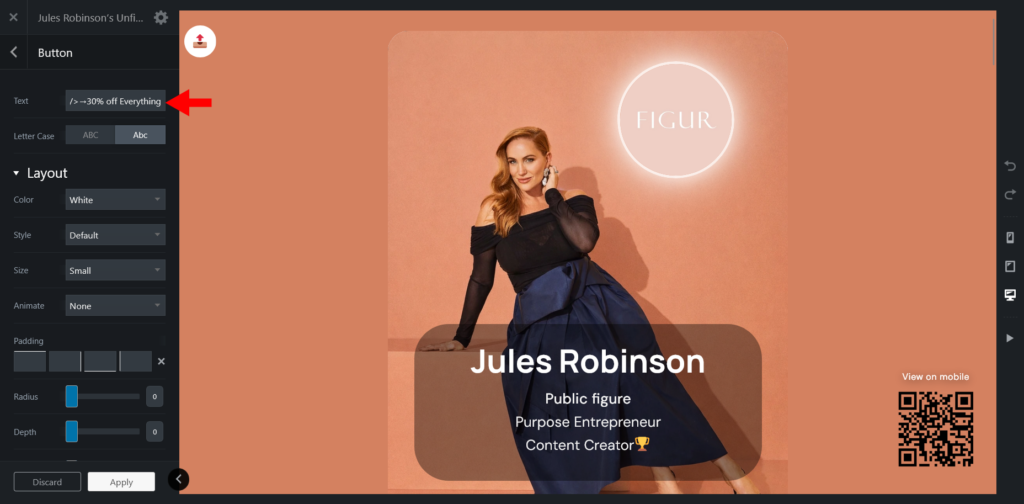
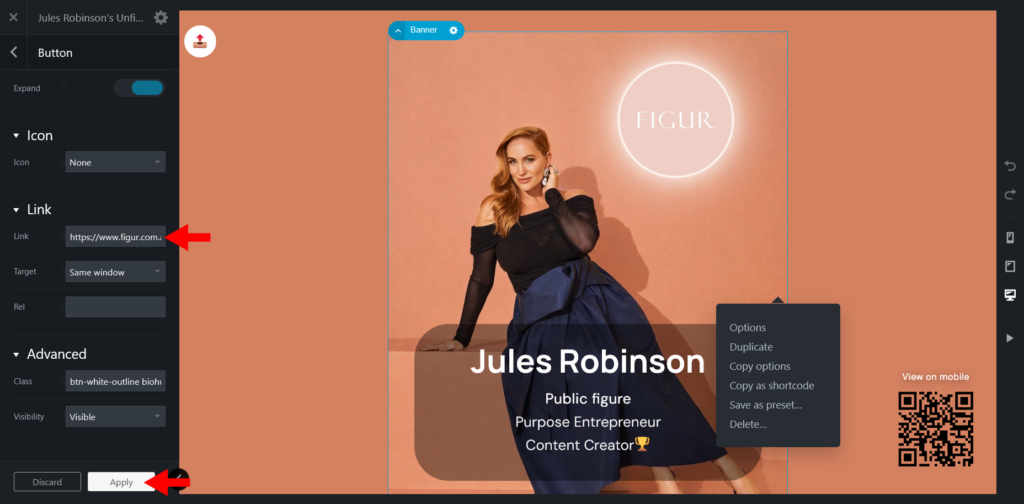
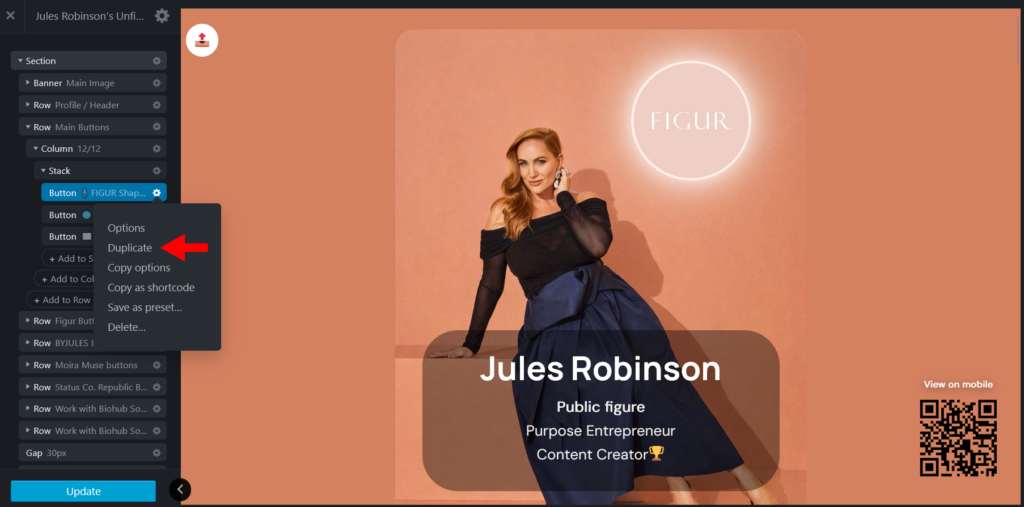
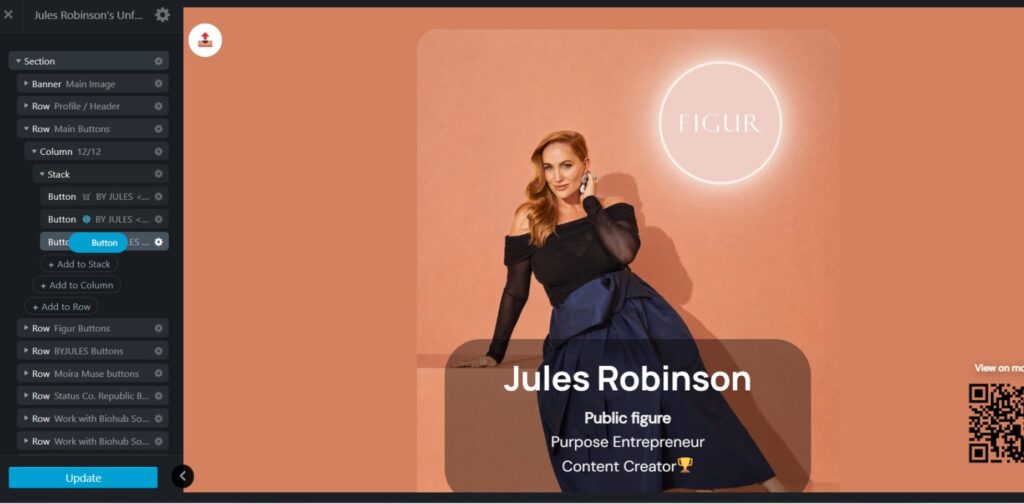
👉 You can reorder buttons anytime:
✔️ This controls the order they appear on the page
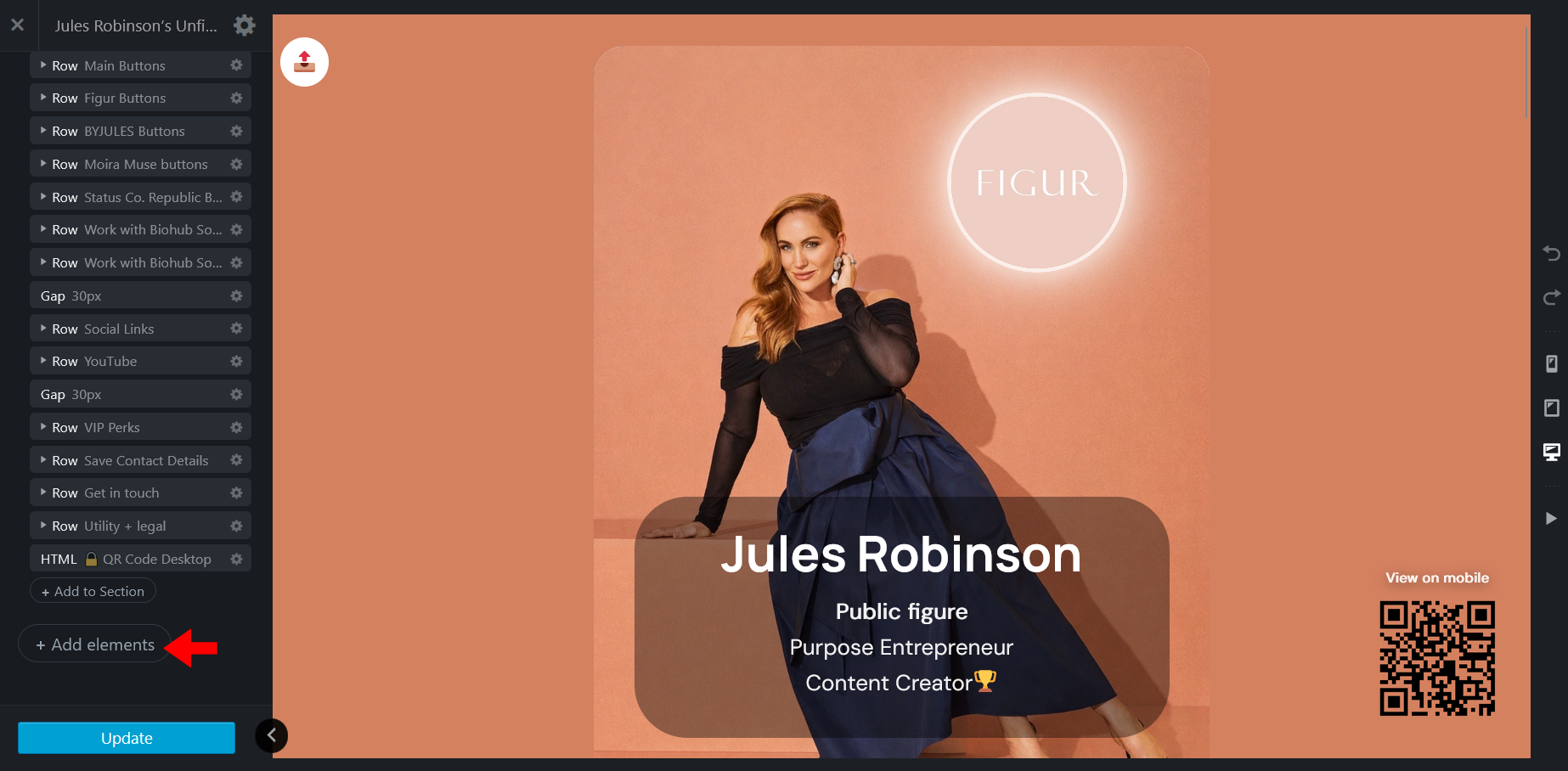
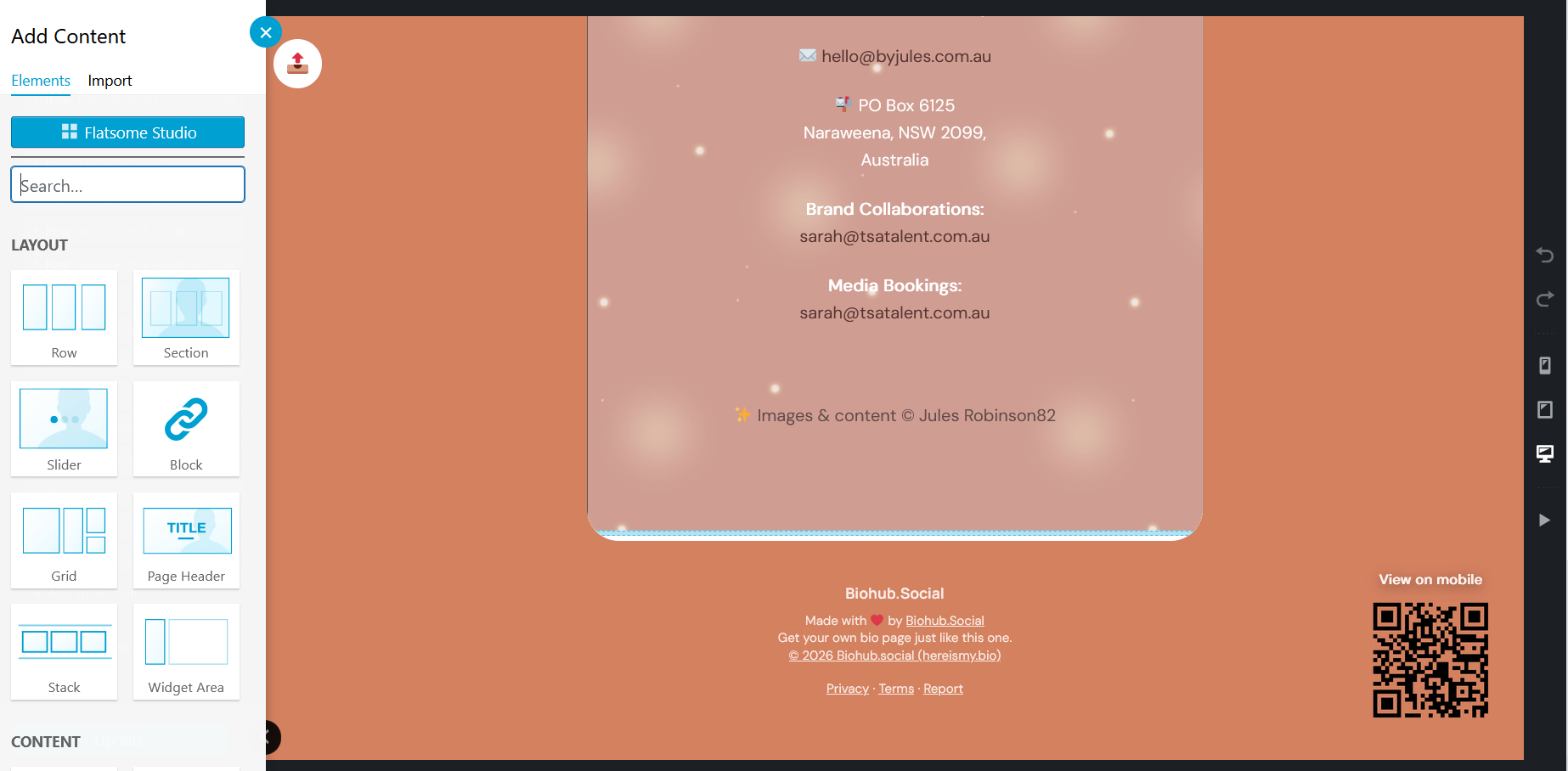
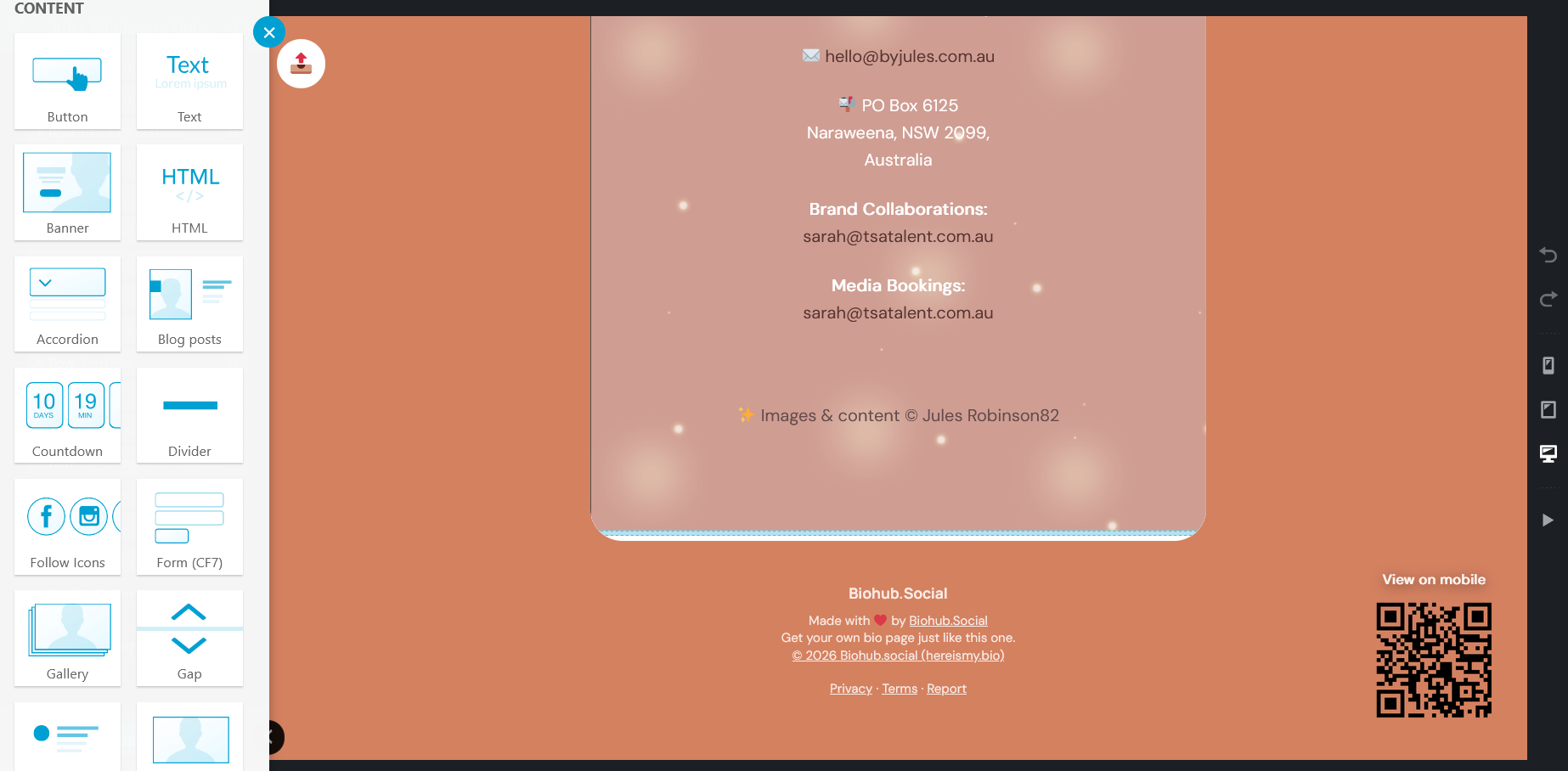
If you feel confident, you can customise your BioHub further by adding extra elements into a section or row.
COMING SOON
First 30 valid DMs go in the draw.
5 winners get FREE Starter = $0 build + $0 Year 1 hosting.